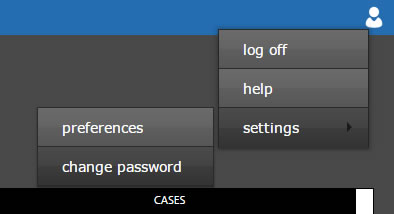
To change you password, click on the User Icon on the far right of the Tab Bar while logged in to the CAPSYS CAPTURE Web Client. Select settings, then change password from the menu.
Figure 1 - Change Password Menu
The 'account settings' window will be displayed. Select the 'password' tab. In order to change your password, the current (or old) password must be provided. Enter the old password, the new password, then enter the new password a second time to confirm. You may click the icon in each password field to show or hide the value in that field. Click the Save button to accept.
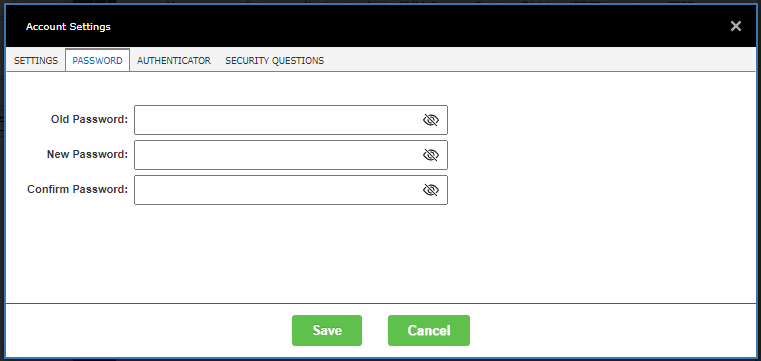
Figure 2 - Change Password Dialog
IMPORTANT! The Change Password feature in the CAPSYS CAPTURE Client only works with native CAPSYS CAPTURE account types. For Active Directory Accounts, contact your Network Administrator.