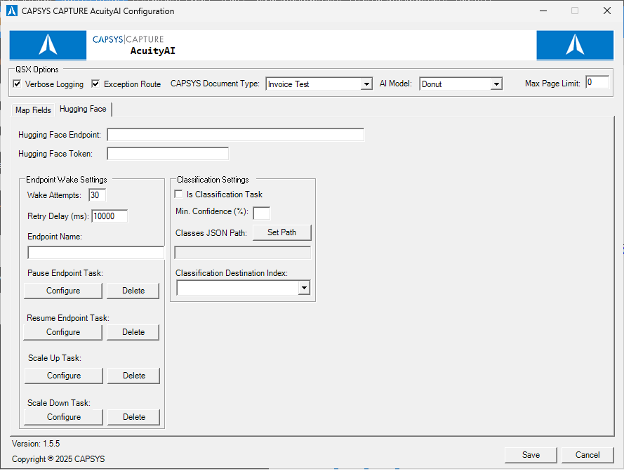
In order to configure a Hugging Face model, you must first start by entering the endpoint URL into the “Hugging Face Endpoint” field. This URL will be generated by the Hugging Face Inference Endpoint that is hosting the model. Next, enter the API Token into the “Hugging Face Token” field. Once both fields are filled in correctly, you are able to use the model.
For further customization, you may configure the Endpoint Wake settings which determines how long the request to the model will wait before giving up, since Hugging Face Inference Endpoints can take multiple minutes to start. The “Wake Attempts” field indicates the number of times the request will check if the endpoint is wake before throwing an exception. The “Retry Delay” holds the number of milliseconds between wake attempts.
If you would like to create tasks to automate pausing, resuming, or scaling the number of GPUs up or down, start by entering the Inference Endpoint’s name in the “Endpoint Name” field, then selecting the relevant task’s “Configure” button. The Pause and Resume tasks should not need their commands changed outside of setting times to execute. The Scale Up and Down tasks involve adjusting the action to changing “-replicas 1 1” to indicate the minimum and maximum number of GPUs to use, respectively. For example, a Scale Up task with “-replicas 1 3” means that up to 3 GPUs will be used to process requests. A Scale Down task with “-replicas 1 1” means that only a single GPU will be used.
When using a Hugging Face model for Classification, check the “Is Classification Task” setting. Then, set a number for the “Minimum Confidence Percent” field. This field indicates that if the model sets the document’s class with less percentage match than the set value then it will be specially flagged as a potential mistake. Then, set the path to the Classes JSON Path .json file. This JSON file should include the list of classes if they are extensive. Otherwise, simply include the classes in the instructions themselves. Finally, set the Classification Destination Index to the index you would like to output the classes.